
You can absolutely make word art from a photo or word art from your logo, and it takes about five minutes in your browser. Here's the one thing to know up front so you're not disappointed: TextShape fills the outline of your subject with your words. Upload a photo of your dog, and it reads the shape of the dog and packs your words into that silhouette. It does not repaint your dog's face, fur, and shadows out of tiny letters. That's a different kind of tool. Think "your words poured into the shape," not "a text version of the photograph." Once you picture it that way, the results are genuinely lovely: a pet's profile filled with their name and all your nicknames, a company logo rebuilt from your values, your home state spelled out in the towns you love.
TextShape is free, runs in your browser, needs no sign-up or account, adds no watermark, and works the same on your phone or laptop. Your photo and your words stay on your device. If you're new to it, the full word art walkthrough covers the basics; this guide is specifically about starting from a photo or logo.
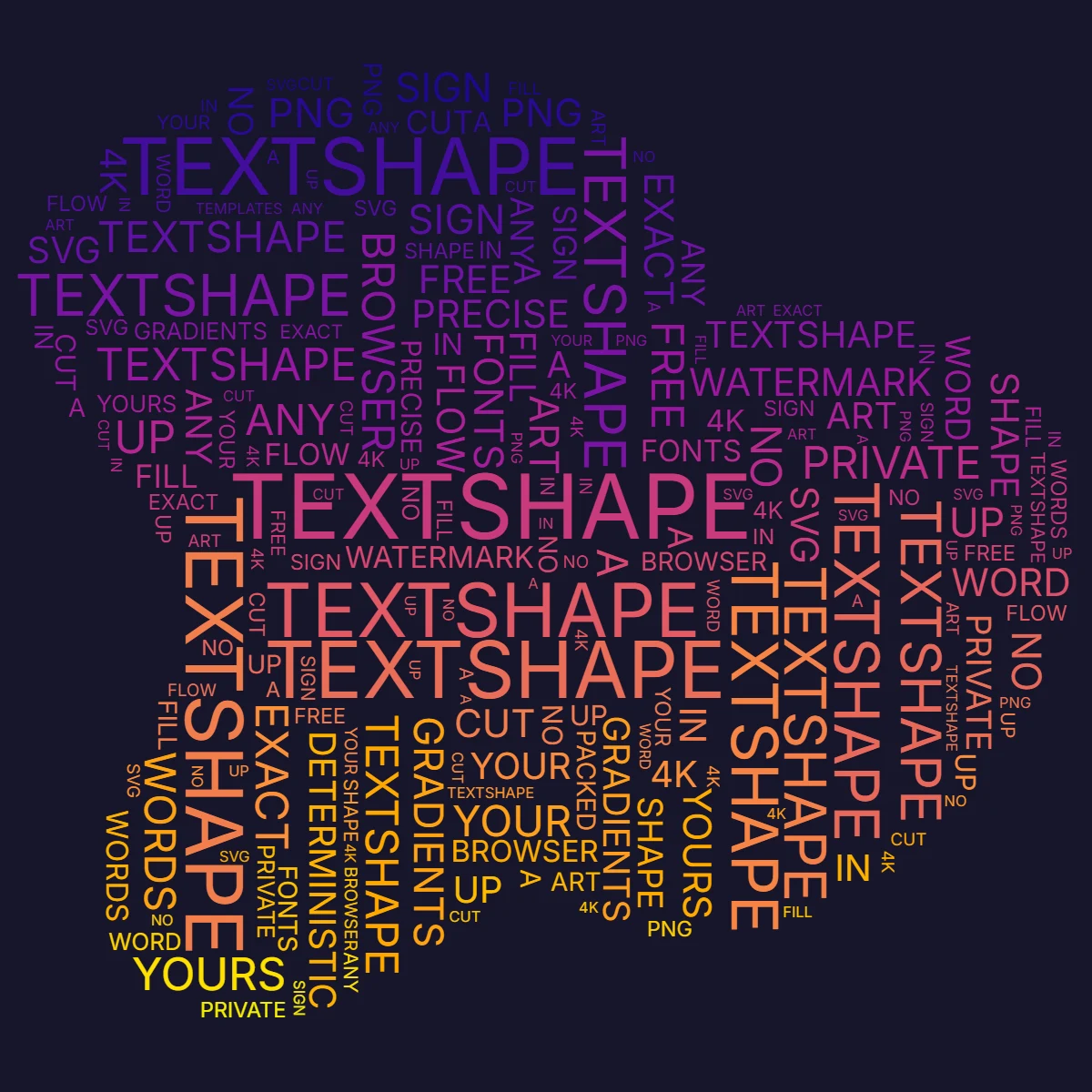
The one tip that makes or breaks it: start from a clean cut-out
Ninety percent of great results come down to this: the picture should be your subject on nothing else. TextShape can only fill a clear, solid shape with words. If your photo has a busy background (grass, a couch, a sky), the tool may try to fill all of that too, and you'll get a blobby rectangle instead of a crisp dog or a clean logo.
Two easy ways to get a clean shape:
- Best: start from a cut-out image (a transparent-background PNG). Logos you already have usually come this way. So do clip-art and many product images.
- Easy: upload your normal photo, then tap Remove Background. TextShape lifts your subject off its background in one tap. If a few stray bits hang around (a sliver of leash, a shadow under the paws), use the erase brush to wipe them away. Spend thirty seconds here and everything afterward looks professional.
Do this, not that:
- Do pick a photo where your subject is clearly separated from the background (a pet sitting against a plain wall beats one lost in a flower bed).
- Don't use a busy group photo and expect one clean shape; crop to the single thing you want first.
- Do prefer a bold, simple outline (a side profile, a full-body pose, a logo mark).
- Don't worry about lighting or focus, since only the edge of the shape matters, not the detail inside it.
Step-by-step: turn your photo into word art
- Open TextShape and upload your image. Drag in your photo, logo, or cut-out PNG. (No image yet? You can also start from one of ~200 ready-made shapes, like hearts, stars, animals, paw prints, country and state maps, and speech bubbles, then skip to step 3.)
- Clean the shape. If your picture has a background, tap Remove Background, then tidy any leftovers with the erase brush. You're aiming for your subject floating on a clear, empty space.
- Type your words. Paste in the text you want: names, a message, a list, song lyrics, your company's mission. More on choosing words below.
- Pick a look: Flow or Packed. This is the big creative choice (see the next section). Tap to switch and watch the preview change.
- Add color. Choose a gradient, a ready-made palette, or pull colors straight from your original picture so the art matches your brand or your pet's coat. Any Google Font is available, so pick one and see a live sample.
- Make key words big. Type
*right before any word (like*BUDDYor*FAMILY) and it shows up large everywhere it appears. Great for a pet's name or a brand word you want front and center. - Reshuffle until you love it. Tap to shuffle the layout, and keep the version you like best. Each shuffle is a fresh arrangement of the same words.
- Download. Save a high-resolution PNG up to 4K: transparent, on a solid color, or laid over your original picture. There are one-tap social sizes too. What you see in the preview is exactly what you download.
Flow vs Packed: pick the right look for your subject
TextShape gives you two fill styles, and choosing the right one is half the battle.
- Flow lays your words in readable lines that follow the shape's outline. Choose this when the words are meant to be read: a quote inside a heart, your company tagline inside the logo, a short message in a speech bubble. It looks calm and intentional.
- Packed is the classic word-cloud look: the biggest words land first, smaller ones fill the gaps, and the whole silhouette fills in edge to edge. Choose this when you have lots of words and want a rich, textured fill: every nickname for your pet, every town in your state, every value your brand stands for. In Packed mode, words you repeat more often automatically grow bigger, and filler words like "the," "and," and "of" are ignored so they don't crowd out the meaningful ones.
Quick guide:
| Your goal | Use | Why |
|---|---|---|
| A readable message in a shape | Flow | Lines follow the outline; stays legible |
| A dense, decorative fill | Packed | Big-to-small word-cloud fill |
| A logo that should still read as the logo | Flow + one big *word | Keeps the brand word dominant |
| A pet outline bursting with names | Packed | Fills the silhouette richly |
Real examples to copy
- Your pet's outline. Cut out a side-profile photo (or start from the paw or dog/cat shape), switch to Packed, and fill it with their name, breed, every silly nickname, and the words you'd use to describe them. Star the name (
*LUNA) so it dominates. Pull the colors from their actual coat. Print it for a frame or a mug. There's a full pet word art guide if you want the step-by-step. - Your company logo. Upload your transparent-PNG logo, keep Flow so it stays recognizable, and fill it with your mission, services, or values. Use your brand font and brand colors. Download transparent and drop it onto a slide, a tote, or your website.
- Your home state or country. Pick the map shape (or upload an outline), choose Packed, and fill it with the towns, parks, and memories from there. A heartfelt housewarming or going-away gift.
A few small tips that make a big difference
- More, shorter words fill a shape better than a handful of long ones. If your art looks sparse, add more words or break long phrases into single words.
- Try "Mixed" orientation in Packed mode, since it turns some words sideways to fill tricky corners and tight curves (a pointy ear, a thin tail) that horizontal-only text leaves empty.
- Shuffle and keep. Don't settle on the first layout. Reshuffle a few times and save the arrangement you like; it's free and instant.
- Pull colors from your picture for instant cohesion, especially with logos and pets.
Why people use TextShape for this
Plenty of new "word art" tools are really AI-image generators: you type a prompt and get a random picture of fake, often-misspelled text you can't edit. TextShape is different in a calm, practical way: it arranges your actual, readable words, you control every one of them, and the same settings reproduce the same result. It's free, has no sign-up or watermark, works on your phone, and lets you reshuffle until it's right. Just remember the golden rule, start from a clean cut-out (or tap Remove Background and erase the strays), and your photo or logo will fill beautifully with words that actually mean something. Open the word art generator and upload your picture to start.