
Changelog
What's new
Every feature, improvement, and fix I ship to TextShape — newest first.
- New
Image layers: stack up to three designs into one image
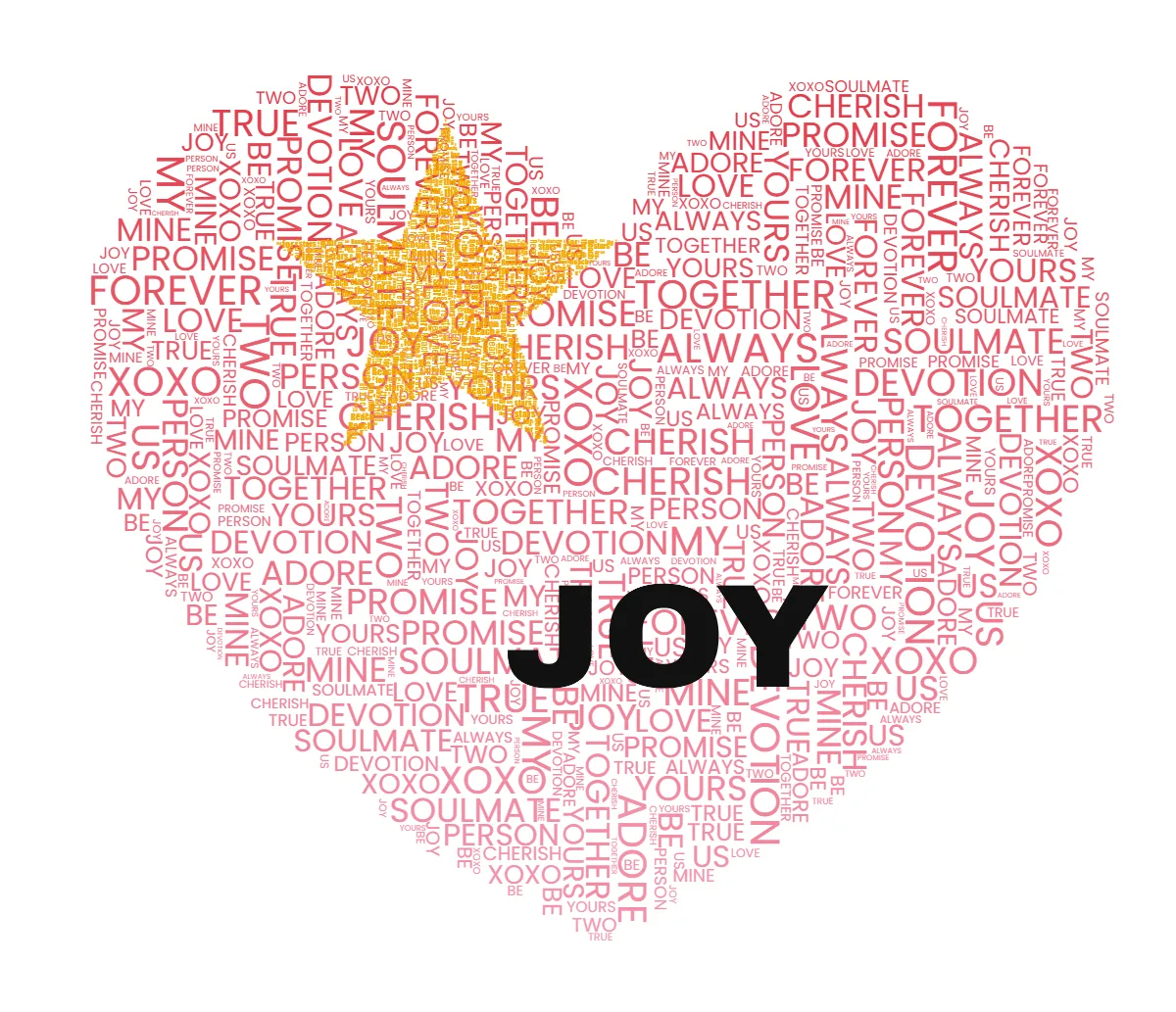
You can now stack up to three images as layers, each with its own full design — its own words, fill style, colors, headlines, and image edits. Add a layer from the new Layers panel by uploading an image, picking a template, typing a word, or rolling a Surprise me design; click any row to edit that layer, duplicate it in one tap, and use Arrange to move and resize each layer right on the canvas; each row also has its own opacity slider. Toggle which layers show and which are included, then export a single flattened PNG of the whole stack. Animated (MP4/GIF) and vector (SVG cut) export stay available for single-layer designs.
Three designs stacked as layers, flattened into one image. - Improved
A sharper walkthrough that now teaches the hidden gems
The editor’s guided tour got a redesign (a cleaner card with a step-tick progress bar, keyboard hints, and full dark-mode support) and a sharper path: Surprise me, the * featured-word trick, and the undo safety net are in; pure tool-listing stops are out. Beyond the tour, the editor now teaches as you explore — the first time you switch to Packed or Outline, open Export, add a headline, or try Smart select, a one-time tip points out what that mode can do. More “?” buttons explain the buried power features: word import, ancient scripts, cut mode, and headline shape interaction.
- Improved
Mobile polish across the whole site
A full-site audit on phone screens led to a batch of fixes: the header takes half the space it used to on small screens, buttons stack cleanly at one width, the trust badges align in a tidy grid, lists keep their indent when they wrap, links are easier to tap, and dark mode links are brighter for better readability. A handful of spots where two words ran together (a build quirk) are also fixed.
- Blog
New page: the word cloud generator, for clouds with a real shape
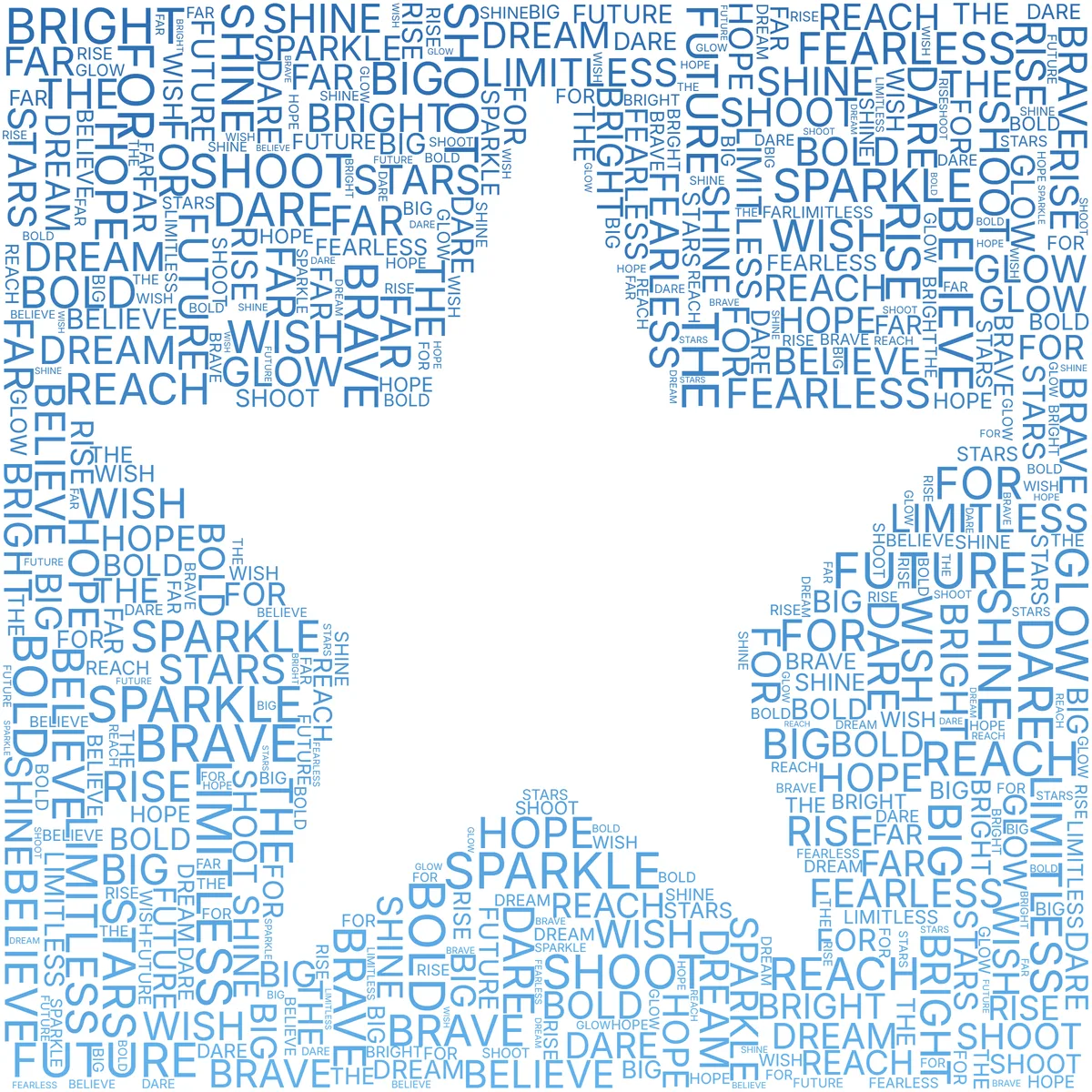
A dedicated word cloud generator page joins the site: paste your text and the cloud packs into an exact silhouette — a heart, a star, an animal, or your own image — with frequency sizing or exact-words mode, and everything processed on your device (safe for student writing). The fill styles guide also gained the Invert trick: fill everything around the shape so the silhouette becomes the empty space. Site copy across the landers, FAQ, onboarding, and llms.txt now names the Outline fill style where older two-style descriptions lingered.
Invert: the words fill everything around the shape. - Blog
New guide: Flow vs Packed vs Outline, the three fill styles compared
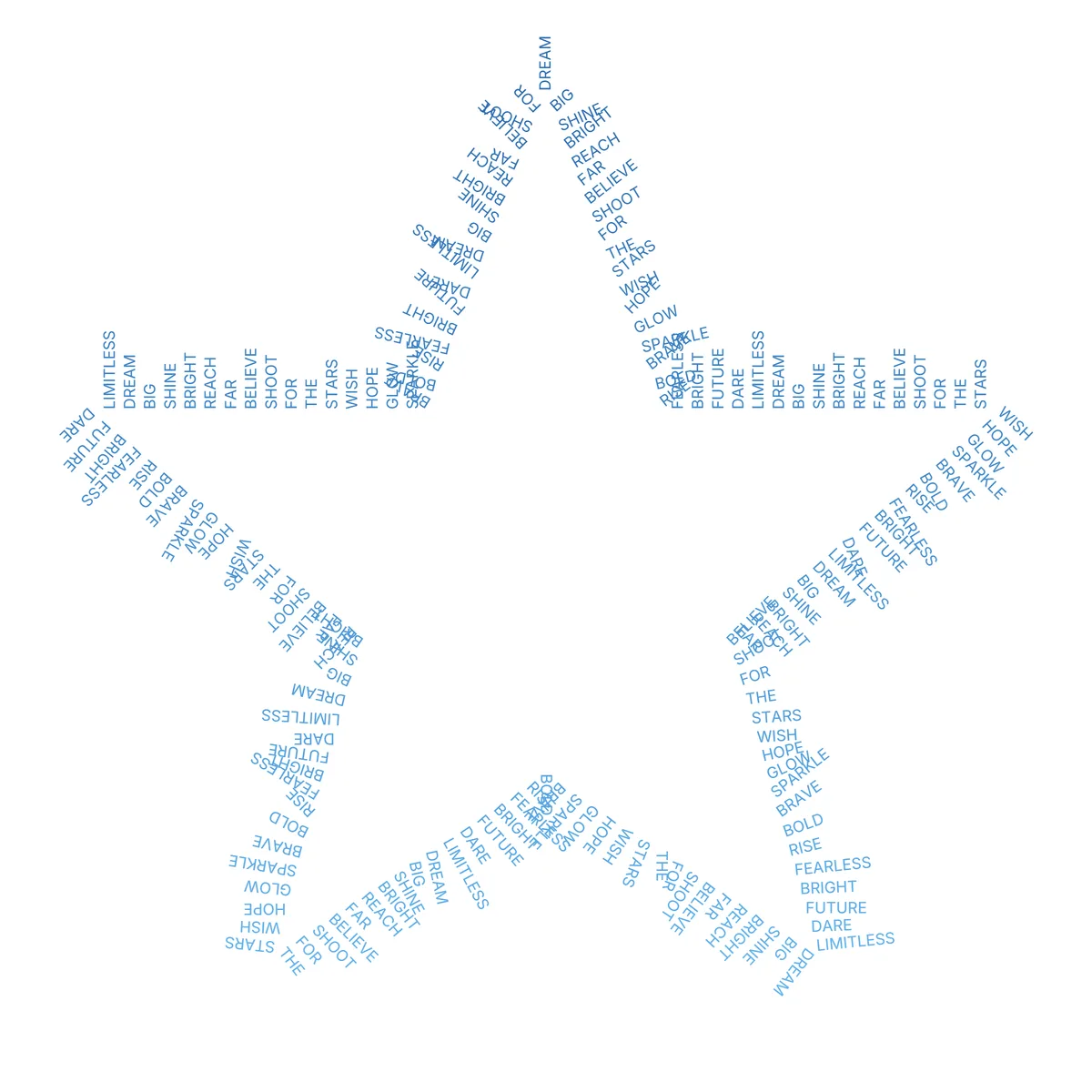
A new comparison shows the same star, with the same words, rendered in all three fill styles: Flow for readable lines, Packed for the dense word-cloud look, and Outline for words that trace the edge and leave the inside empty. It covers what each style unlocks, what carries over when you switch, and which to pick for verses, rosters, posters, and minimalist prints.
Outline with Radial words on: every word becomes a spoke. - Blog
New guide: every way to export your word art
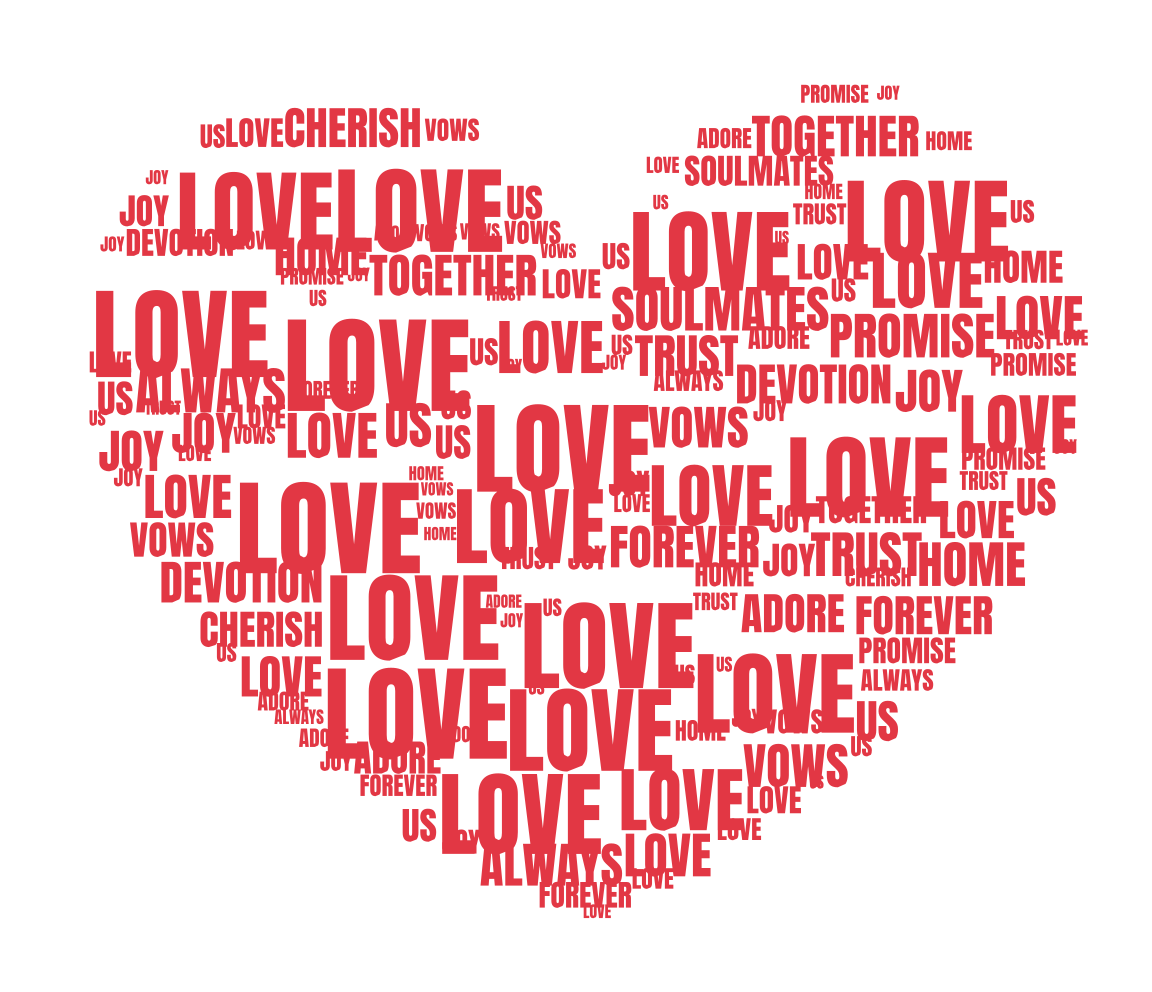
A new guide covers all four files the editor produces: high-resolution PNG with transparent, solid, or faded-photo backgrounds, real vector SVG with a cut mode that welds letters for Cricut and Silhouette, and the animated reveal as MP4 or GIF. It includes an actual cut-ready SVG embedded in the page, plus a plain answer to which format fits which job.
A real cut-mode SVG export: one color, one welded path. - New
Choose how a custom export size fits: Fit, Crop, or Stretch
Picking a custom width and height that is a different shape to your design used to be a guess — and for some layouts the height you typed was quietly replaced. Now you choose: Fit keeps the whole design and pads to your size, Crop fills the frame and cuts the overflowing edges, Stretch fills it exactly. The file is always exactly the size you asked for. The size boxes also had a mobile bug where a typed value sometimes did not save; they now keep what you type until you are done editing.
- Blog
New guide: Christian word art, from a belief-word cross to scripture in a shape
A new guide covers one of the most heartfelt uses of the editor: filling a cross with belief words, setting a whole verse in a shape with the readable Flow layout, and word lists for baptisms, confirmations, Easter, Christmas, and memorials. It also covers the practical corners, like which Bible translations are free to print and sell, and the two settings that keep names whole and unrepeated in a memorial piece.
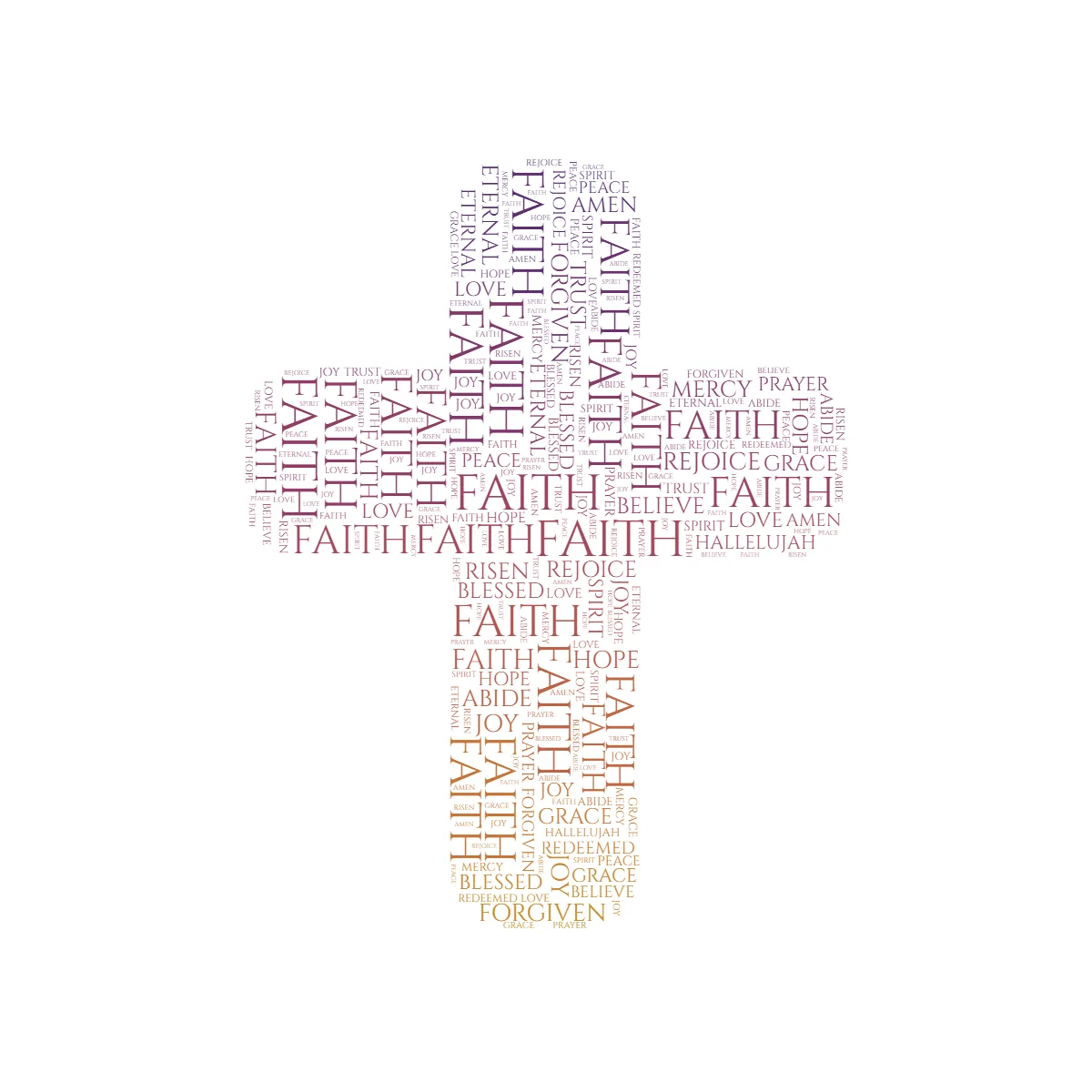
A cross filled with belief words, made in the editor. - New
Outline mode: run your words around the shape’s edge
A new third fill style, Outline, sets your words along the shape's silhouette instead of filling it. The text traces the contour, each word bending to follow the curve, so the outline itself is drawn out of words and the inside stays open — a cleaner, more graphic look than a packed fill, and a natural frame for a name, a date, or a short phrase repeated around the edge. Pick it under Fill style in the Text tool, next to Flow and Packed. It follows every outline the shape has, including inner cut-outs, and works with your colors, gradients, palettes, fonts, special-word styling, a random tilt, and ancient scripts just like the other styles — and exports to PNG and the MP4/GIF reveal. A Letter angle slider lets you tilt the letters relative to the edge, from reading along the outline all the way to standing perpendicular to it. Or flip on Radial words for a sunburst: each word becomes a spoke pointing straight out from the shape — or inward, filling the silhouette from the edge toward the center. Built from a suggestion sent through the in-editor feedback nudge.
- New
Smart select: point at what to keep
When one-click "Remove background" cuts too much or too little — a thin leg that fades into a same-toned floor, or a subject the auto-cut misreads — Smart select lets you guide it. Click the subject to keep it and right-click stray areas to remove; it re-segments after every point, so a click or two usually captures the whole thing, legs and all. It shines on exactly the photos automatic removal struggles with: low-contrast subjects where the background is the same color as the thing you want. Like the one-click remover it runs entirely in your browser on your device, and it bakes into the same undoable image edit.
- Improved
Clean up an AI cutout: restore brush + a way to spot leftovers
AI background removal is only ever as good as the photo, so two tools now let you finish the job by hand. A Restore brush — the eraser's opposite — paints back any part the cut dropped, like a thin leg or paw that faded into a similar-toned background. And because stray bits of removed background are often too faint to see against the transparent checkerboard, the Erase and Restore tools now include a backdrop switch (white, black, or magenta) that makes those leftovers obvious so you can wipe them — a view-only aid that never changes your export. The removal itself also now drops tiny floating specks automatically.
- New
Remove a photo background with one click — on your device
Upload a photo and hit "Remove background" in the Image tool: it finds the subject and drops the background, so your words fill the thing in the picture instead of the whole frame. It runs entirely in your browser — the image never leaves your device, in keeping with how the rest of the editor works — and it undoes like any other edit. The old one-tap remover, which only handled a single flat background color, is still there as the instant option for logos and solid studio shots; the new AI removal handles real photos with busy backgrounds. Best results still come from a clear subject in a readable pose — the cut is only ever as good as the photo you give it.
- Improved
We tell you when your suggestion ships
If you send feedback through the 'what feature is missing?' nudge, and we later build it, the editor now tells you so on your next visit — a small 'you asked, we built it' note with what shipped. No account and no email: your browser quietly remembers the suggestion it sent and checks whether it's live. The 'keep sentences together, separated by enter' request that became the new line-as-entry option was the first one to close this loop.
- Improved
Keep names and places whole
Until now the layout split your text on every space, so "San Antonio" became two words and a full name like "Sarah Jenkins" could land in two different corners of the shape. Tick "Keep each line as one entry" in the Text tool and each line stays together — multi-word place names, full names, and featured phrases like "Lone Star" render as one unit. It pairs naturally with "Use my exact words" for a roster, a credits list, or a memorial, where a name torn in half reads worse than any repeat. Every template's word list now opens this way, so the cities and sayings inside a map read as themselves.
- New
All 50 US states, as their real map outlines
Texas was the only state in the gallery. Now every state has its own template and its own page — Alabama to Wyoming — grouped in a new US States collection, each one preloaded with the words that actually belong inside it: the cities, the nickname, the landmarks, the food worth arguing about, and the phrases that give a local away. The shapes are true outlines from public-domain Natural Earth map data, not stylized icons, so Michigan keeps both peninsulas, Alaska keeps its panhandle, and Hawaii stays the scattered chain it really is. Texas moved from Countries & Maps to join them; its page and links are unchanged, and the countries and continents stay where they were.
- Improved
Real animal silhouettes — and 16 new animals
The animal shapes were stylized icons; several were only heads. They are now true silhouettes from PhyloPic, a library of scientific organism outlines: the horse is a whole grazing horse instead of a head, and the fox, rabbit, penguin, sea turtle, elephant, owl, dolphin, and T-rex all gained real anatomy. Sixteen animals we had none of joined them — a wolf, bear, humpback whale, great white, orca, hippo, zebra, octopus, jellyfish, seahorse, bat, frog and snake, plus a triceratops, woolly mammoth and sabre-tooth cat. A few shapes deliberately kept their icons: the lion, because a real lioness has no mane and stops reading as a lion, and the bee and butterfly, whose real outlines are too fine to fill with words.
- New
A four-leaf clover, ancient amulets, and the Sphinx
The Good Luck collection was missing the most obvious charm of all, so the four-leaf clover is now in it — the iconic symmetrical one, distinct from the stemmed St. Patrick's clover that stays with the holiday designs. Alongside it: the protective amulets people have carried for millennia — the Star of David, and three from ancient Egypt (the ankh, the Eye of Horus, and the scarab). Egypt's landmarks joined Travel too, with the Great Sphinx and a pyramid, and a lotus flower is now in Nature & Outdoors.
- New
Use my exact words — a no-repeats packed layout
Packed mode can now place each word exactly once, in your wording: nothing repeated, nothing skipped, nothing dropped. Until now both layouts treated your text as a pool to sample until the shape filled, which is wrong for a team roster, a set of credits, or a memorial where a repeated name reads as a mistake. Tick “Use my exact words — no repeats” in the Text tool. A short list fills a shape more loosely than the repeat-driven default — that is the trade. We also corrected the “Word cloud — size by frequency” description, which previously claimed each word appeared once when small repeats were still filling the silhouette.
- New
44 new templates: athletes, sports gear, and lucky charms
Two new collections, both from user requests. Sports & Fitness adds 25 athlete silhouettes — a runner, cyclist, swimmer, surfer, gymnast, boxer, skier, snowboarder and more — alongside gear we were missing: padel and pickleball bats, a ping-pong bat, tennis racket, hockey stick, cricket bat, boxing glove, and volleyball. Good Luck & Charms is new too: a horseshoe, ladybug, dice, shooting star, crossed fingers, hamsa, acorn, and fortune cookie. Sports now has its own category (it had been sharing one with hobbies), so the guitars, cameras, and controllers stayed behind in Hobbies & Music.
- Improved
Packed: a size-contrast dial and a simpler tilt control
Two refinements for packed word-art. A new Size contrast slider dials how sharply word sizes vary — from a few big words with many small ones, to a more uniform fill. And the random Text Rotation control is now a single Tilt slider (up to ±45°) instead of separate min/max angles — one knob to scatter word angles for a livelier cloud.
- Improved
Packed mode: a continuous word-size slider and random tilt
Packed (word-cloud) mode gained finer control. The four size presets (Small…Very large) are now a single continuous Word size slider, so you can dial the fill in exactly — and it travels in share links. Random rotation works in Packed too: switch on “Random rotation variation” in the Effects tool to scatter each word’s angle for a livelier, jumbled cloud (the base angle still comes from the Orientation control).
- Blog
New guide: turn a photo or logo into word art
A new step-by-step guide covers making word art from a photo or your logo: upload a picture, clean it up with one-tap background removal and the erase brush, and fill your subject's outline with your own words. It sets honest expectations (TextShape fills the shape's outline, it doesn't repaint the photo out of tiny letters) and walks through the Flow vs Packed choice, color, and export.
- Blog
Two new comparison guides: WordArt.com and wordclouds.com alternatives
Two new pages walk through how TextShape compares to WordArt.com and wordclouds.com — honestly, with a side-by-side table. Versus WordArt.com the wedge is free high-resolution PNG (up to 4K) and cut-safe SVG plus private, in-browser processing, where WordArt.com charges for high-resolution and vector downloads. Versus wordclouds.com — both free and browser-based — the difference is breadth: a readable Flow engine, styled headlines, cut files, and a mobile-first editor, while wordclouds.com stays stronger for pulling words out of URLs and documents.
- Improved
A roomier, clearer editor on phones
A mobile editor tune-up that gives your canvas more room and makes headlines easier to handle.
Status messages are now a floating toast that fades on its own instead of a permanent bar, the zoom and “surprise me” controls float over the canvas, and the top bar drops the title on small screens — together reclaiming a big strip of vertical space.
You can tap a headline right on the canvas to re-open it for editing (even after closing the panel), the headline panel now tells you it collapses so you can drag freely, and a one-time hint shows that you can swipe across the canvas to adjust settings. Any tool panel can now be swiped down to collapse or dismiss it, and two-finger pinch-to-zoom works throughout.
- New
A real word table: repeat counts, per-word links, bulk import
Special Words grew into a proper word workbench. On desktop it’s now a table — word, color, size, font, bold/italic, rotation, plus two new columns: Repeat (show a word up to 50× as if you’d typed it that many times — it sizes up in word-cloud and frequency modes too) and Link (a URL saved per word for the upcoming interactive HTML export). And the Text panel gained "Import words": paste any text, a word list, or a CSV with counts — it de-duplicates, counts frequencies exactly the way the layout engines do, shows you the top words, and fills the design in one tap, with frequency sizing offered automatically in packed mode.
- New
Type a word — fill its letters with words
TextShape can now use TEXT as the shape itself. In the editor’s Source panel, type a word or letter (thick fonts work best), tap "Use as shape", and your words fill the letterforms — the classic "words inside letters" poster. Ten ready-made word shapes (LOVE, HOME, FAMILY, MAMA, HOPE, FAITH, JOY, PEACE, DREAM, SMILE) join the A–Z monograms in the renamed Letters & Words template category, shared designs made this way now remix correctly from the gallery, and the templates page gained a "By occasion" section — Wedding, New Baby, Christmas, Teacher, Memorial and more — so gift-makers can start from the moment, not the shape.
- New
Surprise me, mixed fonts, and photos behind your words
Three new ways in: a "Surprise me" dice on the empty editor (and homepage) instantly composes a full design — shape, words, font, and colors from hand-picked combinations — so you can roll until something clicks, then make it yours. The font picker is now searchable with live previews, and Special Words can set a different font per word, so one design can mix several typefaces. And with an image background you can now dial the photo’s opacity down, letting the original picture show faintly behind the word art — in the editor and in every PNG and video export.
- Fixed
80+ fixes from a full-codebase bug hunt
We audited every corner of TextShape and fixed more than eighty bugs and broken edge cases. Highlights: word-cloud sizing now counts punctuated words correctly (frequent words are reliably biggest), headlines with long descenders no longer get clipped in exports, shared links containing "%" no longer crash the editor, huge phone photos are downscaled instead of loading blank, pinch-zooming while erasing no longer scars your image, and PNG size presets, SVG cut files, and MP4/GIF reveals all come out the size and shape the panel promises. On phones the editor now owns the whole screen: the tool bar stays pinned to the bottom instead of scrolling away into the page text.
- Fixed
Smoother undo, honest export sizes, better mobile fit
Three editor fixes from a full platform review. Dragging a warp marker now undoes as a single step (one Ctrl+Z puts everything back, instead of replaying the drag frame by frame). The export panel now reports the exact pixel size your PNG will actually be — including when a headline sticks out past the shape and grows the canvas. And on phones the editor no longer pans sideways: the top bar fits small screens properly.
- New
Warp your word art from points you place
Flow word art can now warp from points you drag on the canvas. In Text Effects → Size Gradient, pick "Warp from a point" and drag the ⊕ marker to make words biggest there and taper outward (a vortex). Or pick "Warp between 2 points" and drag two markers — the words FLOW along the line between them, reading down the axis and sized big-to-small along it, so the text finally breaks out of being stuck horizontal. The same origin also animates the MP4/GIF reveal, with words appearing outward from your point. Defaults keep everything unchanged until you move a marker.
- New
Place a headline behind your word art
The Headline tool has a new "Behind the word-art" option (under Shape interaction). Add a big headline, switch it on, and your shape sits in front of the text — the headline reads around the silhouette while the word art overlaps it, for a poster-style "text behind the subject" look, like a magazine cover where the subject crosses the title. It works live and bakes into your PNG and MP4/GIF exports. Tip: position the headline so a narrow part of the shape crosses it (so the word stays readable), and give it a contrasting color.
- New
Dark mode
TextShape now has a dark theme — tap the sun/moon toggle in the header (or the editor top bar) to switch. Your choice is remembered and loads instantly with no flash. The whole app adapts — homepage, editor, panels, the guided tour, and the template gallery — while your artwork and exports stay exactly as you made them. It is opt-in, so nothing changes unless you turn it on.
- New
A guided tour + per-feature help in the editor
New to TextShape? A quick guided walkthrough now runs the first time you open the editor — it points out each step from picking a shape to exporting, and you can replay it anytime from the new Help (“?”) button in the top bar. Every tool also has its own “?” that pops a short explanation of what it does — Source, Image, Shape, Text, Color, Effects, Special words, and Headline, plus Fill and Export. It works on desktop and mobile and respects reduced-motion.
- Blog
New guide: AI word art vs. your exact words
A new comparison joins the blog: when an AI word art generator is the right call (abstract, “surprise me” art) and when it isn’t — AI image tools often misspell your words, can’t be edited, and aren’t reproducible. The short version: for gifts, prints, and anything meant to be read, a precise generator that places your exact words wins.
- New
More ancient scripts + an esoteric symbol picker
The runes mode grew into a small ancient-script studio. Alongside the three Norse runerows you can now write in Old Italic (the Etruscan alphabet Latin grew from), Gothic (Ulfilas’s 4th-century script), and Ogham (the Celtic stemline script) — six historical scripts in all, each in its authentic Unicode face, and now labelled "Write in an ancient script."
There is also a new symbol picker: drop in zodiac signs, the planets, the alchemical four elements, and sacred marks (ankh, pentagram, yin-yang, caduceus and more) anywhere in your text or in a headline — they render the same on every device.
Scripts and symbols both work in flow and packed fills, in headlines, and in the PNG and animated MP4/GIF exports. (Two notes for cutting: Ogham’s hairline strokes and the symbols don’t weld into a clean cut file, so the cut-ready SVG leaves those out — use PNG or video to keep them.)
- New
Tap to expand + like creations in the gallery
The community gallery got two upgrades. Tap any creation to expand it full-screen — see the detail up close, swipe or use the arrows to flip through the gallery, then jump to its page or remix it. And you can now like the ones you enjoy: tap the heart (on the grid, the expanded view, or a creation’s page) to show some love. No account needed; your likes are remembered on your device, and each design keeps a running count so the most-loved word art stands out.
- Improved
Move headlines smoothly on phones
Dragging a headline around the canvas on a phone used to fight you — the box drifted away from your finger and the controls panel hogged the screen. Now a headline tracks your finger exactly, there is a clear "Move" handle (plus bigger resize and rotate controls sized for touch), and you can tap the grab-bar at the top of the headline panel to collapse it and use the whole canvas to position your text. Drag, resize, and rotate now feel the way they should on a touch screen.
- New
Write your word art in runes
New "Write in runes" mode turns your words into authentic Norse runes — keep typing on a normal keyboard and the letters convert to real runic characters as you go. Pick the runerow: Elder Futhark (the classic 24), Younger Futhark (the Viking-age 16), or Anglo-Saxon Futhorc (the fullest fit for English).
It works everywhere — both fill styles (flow and packed), gradients and color palettes, outlines, and your special words — and you can switch a headline into runes independently of the body. Everything exports too: PNG, the animated MP4/GIF reveal, and the cut-ready SVG (the runes are real Unicode glyphs, so they outline and weld cleanly).
It is a phonetic approximation, not a historically exact transcription (the old runerows have fewer signs than English sounds), so it is built to look striking rather than to pass a runologist's exam.
- New
Headline words: add styled text anywhere
A new Headline tool lets you drop a word or phrase anywhere on the canvas — drag, resize, and rotate it freely, even past the edge of the shape (the canvas grows to fit).
Style it with effects (drop shadow, glow, echo, outline, background, hollow, splice, neon, glitch) — each with Canva-style controls you can dial in (offset, direction, blur, transparency, color, thickness) — or pick a scenario style (Neon Lights, Sci-fi, 70s, Graffiti, Bubble, Aerobics, Arcade) that also sets a matching font.
A "negative space" mode flips, inverts, or knocks the headline out where it crosses the shape. There are also whole-silhouette effects — a soft glow, drop shadow, backing card, or vignette behind the entire word art, each adjustable too.
Everything exports to PNG and the animated MP4/GIF reveal; SVG keeps the headline as a clean cut-ready outline (its glow/blur effects are a deliberate raster-only extra).
- Improved
Smoother, more vivid color gradients
Color gradients now blend in OKLCH — a perceptual color space — so transitions stay bright and evenly lit instead of dipping through muddy or grey midtones. It is automatic; you can still choose other blend modes (Lab, OKLab, Linear RGB, HSL) under the gradient settings.
- Improved
Real examples across the site
The homepage, guides, and this changelog now show actual word art — before/after shapes and a short animated reveal, all generated right in the editor (no mockups). There is even a "from your own photo" example: upload a picture, isolate the shape, and fill it with words.
- New
Emoji, memes, and edgy new shapes
44 new template shapes arrive in two new collections: Emoji & Reactions (heart-eyes, crying-laughing, 100, poop, and more) and Edgy & Internet (middle finger, rock-on, skull, grim reaper, and more). Every one is a distinct silhouette you fill with your own words. A handful of plain, generic shapes stepped out of the spotlight to make room — their pages still work, they’re just no longer front and center.
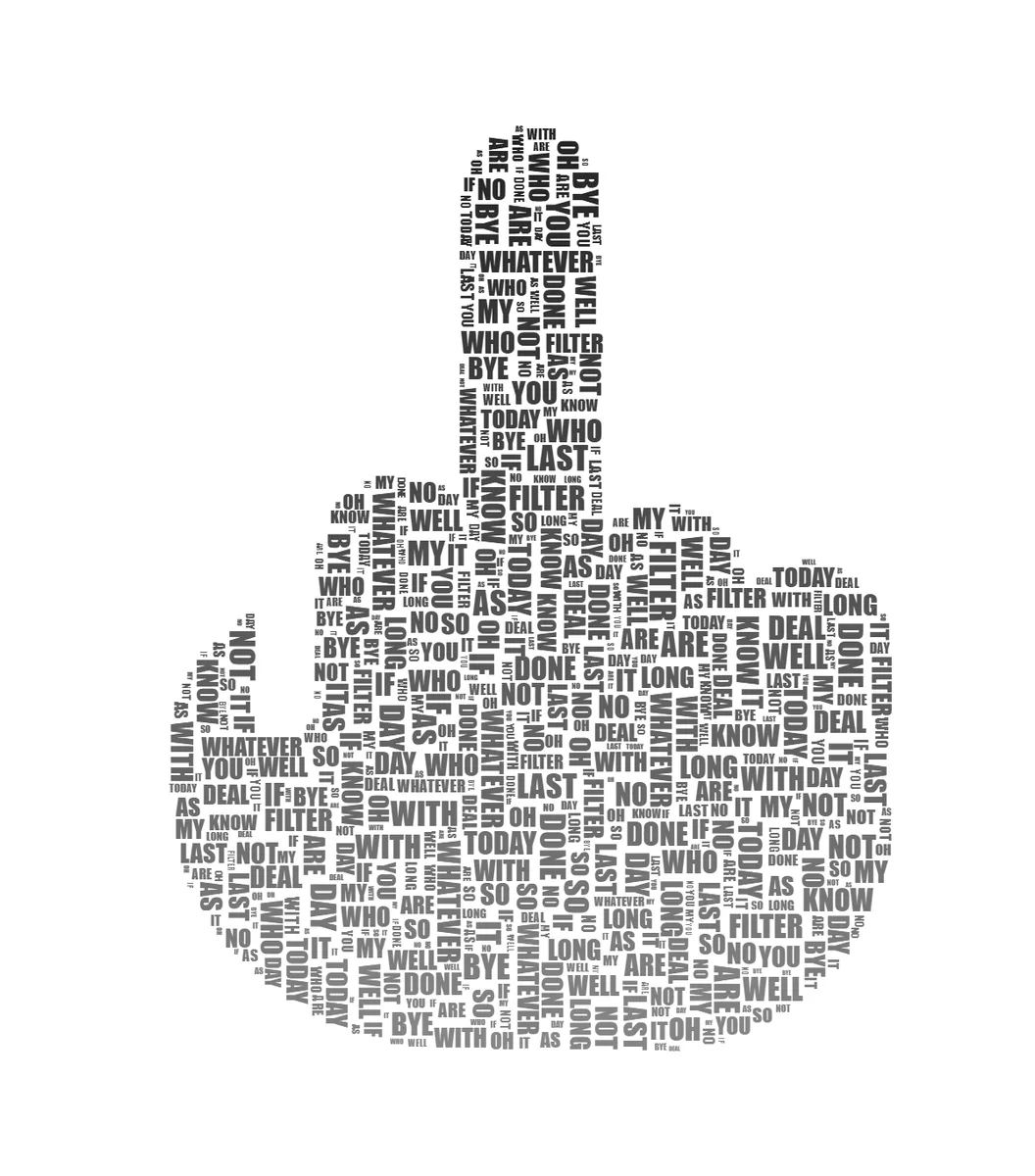
One of the new edgy shapes, filled with your own words. - Improved
A more personal TextShape
TextShape is made by one person — hi, I'm Gediminas. The About page now tells that story instead of listing tech, and the privacy policy got a plain-language refresh — your images still never leave your browser.
- Blog
New guide: how to make a word cloud
A step-by-step word-cloud walkthrough joins the blog — choose your words, fill a shape, size the ones that matter, and export it as a print or a short animated reveal. We also refreshed our older how-to guides for accuracy and clarity.
- New
Turn any photo into a clean silhouette
A new "Make silhouette" tool in the editor’s Image tab: drag one cutoff slider and the canvas previews live as the bright (or dark) areas drop away, leaving a clean shape for your words to fill. Pick whether to keep the dark or light side, then Apply — undoable like any edit.
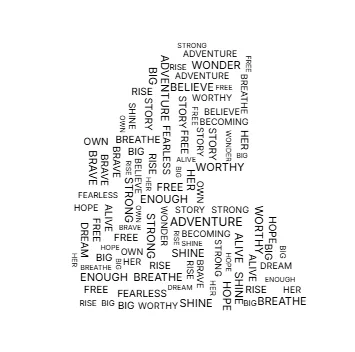
A photo, turned into a silhouette, then filled with words. - Improved
A cleaner, friendlier Image tab
The editor’s Image tab got a premium-tool makeover: every control is now a consistent icon-and-label chip, grouped into “Adjust” (one-tap fixes — remove background, black & white, rotate, flip) and “Tools” (crop, erase, remove color) whose options appear only when you pick them. Clearer, calmer, and quicker to use.
- New
Crop your image
A new Crop tool in the editor’s Image tab with a familiar adjustable box: drag the corner or edge handles to resize, drag inside to move, with a rule-of-thirds grid to help you frame it — then Apply. The shape re-analyzes and your text refills automatically, and Undo steps it back like any other image edit.
- New
Share your work in the gallery
A new community gallery: tap “Share to gallery” in the editor to submit your design, then browse word art other people have made for inspiration. Submissions are reviewed before they appear, and only the finished image is shared — never your source photo.
- New
SVG export — and cut files for Cricut
Export your design as a true vector SVG: every word becomes a scalable glyph outline you can edit in Illustrator or Inkscape. Turn on Cut mode for a Cricut/Silhouette-ready file — one ink color, overlapping letters welded into clean shapes, and tiny unweedable words removed.
- Improved
A cleaner export panel — and GIF by choice
Export is now organized by what you're making: an Image tab for PNG sizes and a dedicated Animation tab where MP4 and GIF are both first-class choices — with the exact output (format, size, frame rate, length) shown before you click.
- New
Export your reveal as a video
Turn the build-up into a social-ready clip: words pop, rise, or — in flow mode — appear line by line in reading order. Exports MP4 (1080px long edge) right in your browser, with GIF where video encoding isn't supported. Made for Reels, TikTok, and Shorts.
- New
A true word-cloud mode
Paste any text and packed mode can now size each word by how often it appears — filler words like "the" are skipped, one runaway word no longer flattens the rest, and small repeats keep the silhouette crisp. Flow mode's word-cloud toggle got the same smarter scaling.
- Improved
Find any shape in seconds
The template picker now has a search bar and category filters — type "dog", "monogram", or "lithuania" and jump straight to the shape. Browsing is grouped by theme, and thumbnails load lazily so the picker opens fast.
- New
Pop Culture shapes
Fifteen shapes for fandoms of every kind: a pixel arcade alien, a twenty-sided die, vinyl, cassette and boombox, a hero mask, a wizard hat, and more — ready to fill with gamertags, campaign names, and movie-night words of your own.
- New
Country maps & national symbols
Forty map silhouettes — from Argentina to the USA, plus every continent — and a National Symbols collection with the Lithuanian Vytis, Poland’s White Eagle, Germany’s Bundesadler, the Celtic harp, and more. Native-language word ideas included, diacritics and all.
- New
A–Z monograms, food & hobbies — 200 templates
The library quadrupled: every letter A–Z (plus an ampersand for couple prints), Food & Drink, Sports & Hobbies, and dozens of new animals and holiday shapes. Two hundred templates across thirteen themed collections.
- New
The template gallery
Browse every shape at /templates, organized into themed collections with word ideas for each design — and open any example pre-filled in the editor with one click.
- Improved
Smooth, centered zoom & pan
Zoom now stays anchored on the point you’re looking at — Ctrl+scroll or pinch to zoom, drag to pan, hold Space to pan while erasing. The label shows true pixel size, and tapping it toggles between Fit and 100%.
- Improved
A refreshed font library
Twelve new faces join the picker — comic, horror, pixel, typewriter, street-sign, roman capitals, and bold scripts like Lobster — each chosen to stay crisp in packed fills. Five near-identical fonts were retired so every choice looks distinct.
- Fixed
Reliable undo, redo, Clear & Reset
Undo and redo now track every step faithfully — no skipped changes or dead button presses — and Ctrl+Z works even while typing. Clear and Reset became single undoable steps: Clear returns to your first fill including image edits, and a mis-clicked Reset is one undo away.
- New
Animated build-up for packed fills
Packed word clouds now assemble before your eyes — biggest words first, then the gaps fill in. Toggle it off for an instant fill; it respects reduced-motion settings.
- New
Packed mode: palettes, invert & size presets
Style packed fills with 28 ready-made color palettes and four clean size presets, or flip "invert" to fill the space around your shape. A starred *word now shows up large at every instance, not just once.
- New
Packed (word-cloud) fill mode
A new fill style packs your words into the silhouette like a word cloud, interlocking real letterforms edge-to-edge. Big images pack off the main thread so the editor stays smooth.
- Improved
Rebuilt undo / redo
A unified timeline makes undo and redo predictable across image edits, shape tweaks, and text fills.
- Improved
Guided start, Clear & Reset
Tools unlock once an image is loaded, and new Clear and Reset buttons step you back to your first fill or the bare image in one click.
- Fixed
Text stays inside curved shapes
Band clipping keeps words within curved edges, so text no longer pokes out of hearts, circles, and other rounded silhouettes — with a looser-fill toggle when you want fuller coverage.
- Improved
Pixel-perfect export
Exports now reproduce exactly what you see in the preview, scaled cleanly up to 4K.
- Improved
A clean slate for every image
Each new image starts from default settings instead of inheriting the last one's, SVG uploads are supported, and the canvas fits the frame more snugly.
- New
Rotate & flip your image
Spin the source image 90° left or right and flip it horizontally or vertically, right in the Image effects tab.
- Improved
Step-by-step image editing
Undo and redo image edits one step at a time, and a brush-ring cursor shows exactly how much the eraser will remove.
- Fixed
Truer outlines & fuller fills
Shape outlines now trace the image's real edges (with a Smoothness control), and 'Scale words to fit' properly fills narrow areas.
- New
Color words from your image
Each word can take its color from the underlying image — perfect for photo word-art and real multi-color flags.
- New
Shape outline
Add a clean border around your shape — the outer edge only, or every edge including inner cut-outs — from the Shape tab.
- New
Canvas zoom & pan
Zoom into the canvas and pan around to place and inspect your text up close.
- New
A redesigned, canvas-first editor
The editor is now built around your canvas: a focused tool rail with contextual panels, live updates as you tweak (no more manual Generate), and a mobile-friendly bottom-sheet layout.
- New
Curated fonts & smart color suggestions
A hand-picked set of display fonts that actually load, plus one-tap palette suggestions generated from your chosen text color.
- Improved
A fresh new look
A bolder, cleaner visual identity with crisp typography and Material Symbols icons throughout.
- New
Erase tool
Paint away parts of your image with an adjustable brush to clean up the silhouette before filling it with text.
- New
10 new shape templates
Ten more ready-to-use shapes — start from a template and fill it with words in seconds.
- New
Pick a template without leaving the editor
Browse and switch shape templates from a gallery built right into the editor.
- Blog
Tips & tutorials on the blog
A new blog with guides on text art, typography, and getting the most out of TextShape.
- Improved
Smoother undo/redo & a better color picker
More reliable undo/redo, a refined color picker with quick gradient presets, and a friendlier mobile color experience.
- New
TextShape launches
Turn your words into shape-perfect art: upload any image or pick a template, type your text, and export pixel-perfect PNGs up to 4K — free, private, and instant.
Try the latest
Jump into the editor and put the newest features to work.
Open Editor